
Configuration Files
Winhance uses .winhance configuration files (JSON format) to store all your app selections and system settings.
This allows you to easily backup your preferences, share them across multiple computers, or quickly set up a new Windows installation with your desired settings.
How to Access Configuration Import/Export
You can access the configuration import/export functionality in two ways:
- Top Navigation Bar: Use the Export Config button (floppy disk icon) or Import Config button (folder icon) in the top right corner of the main window.
- Settings Page: Navigate to Settings from the left navigation pane and use the Import or Export buttons in the Backup & Restore section.
Exporting Your Configuration
Before exporting, make sure all your settings are configured to your desired state:
- Software & Apps: Select the Windows apps you want to remove on future installs, and the external apps you want to install.
- Optimize: Toggle all optimization settings (Privacy, Power, Gaming, Updates, etc.) to your preferred values.
- Customize: Set your theme, taskbar, start menu, and explorer preferences.
- Click the Export Config button (floppy disk icon) in the top navigation bar, or use the Export button in Settings.
- Choose a name and location for your
.winhancefile.
The exported file contains a complete snapshot of all your current Winhance selections and settings.
Winhance uses intelligent filtering to show only settings compatible with your current Windows version (10 or 11). This filter can be toggled using the Filter Icon in the top navigation bar.
- Filter On (Default): Shows only settings applicable to your current OS. Recommended for most users.
- Filter Off: Shows all settings for both Windows 10 and 11. This is useful for creating a "Universal Config" file that can be used on any system.
When you import a universal config, Winhance will automatically apply only the settings that are compatible with your current Windows version. Incompatible settings are silently filtered.
Importing a Configuration
To apply a previously saved configuration:
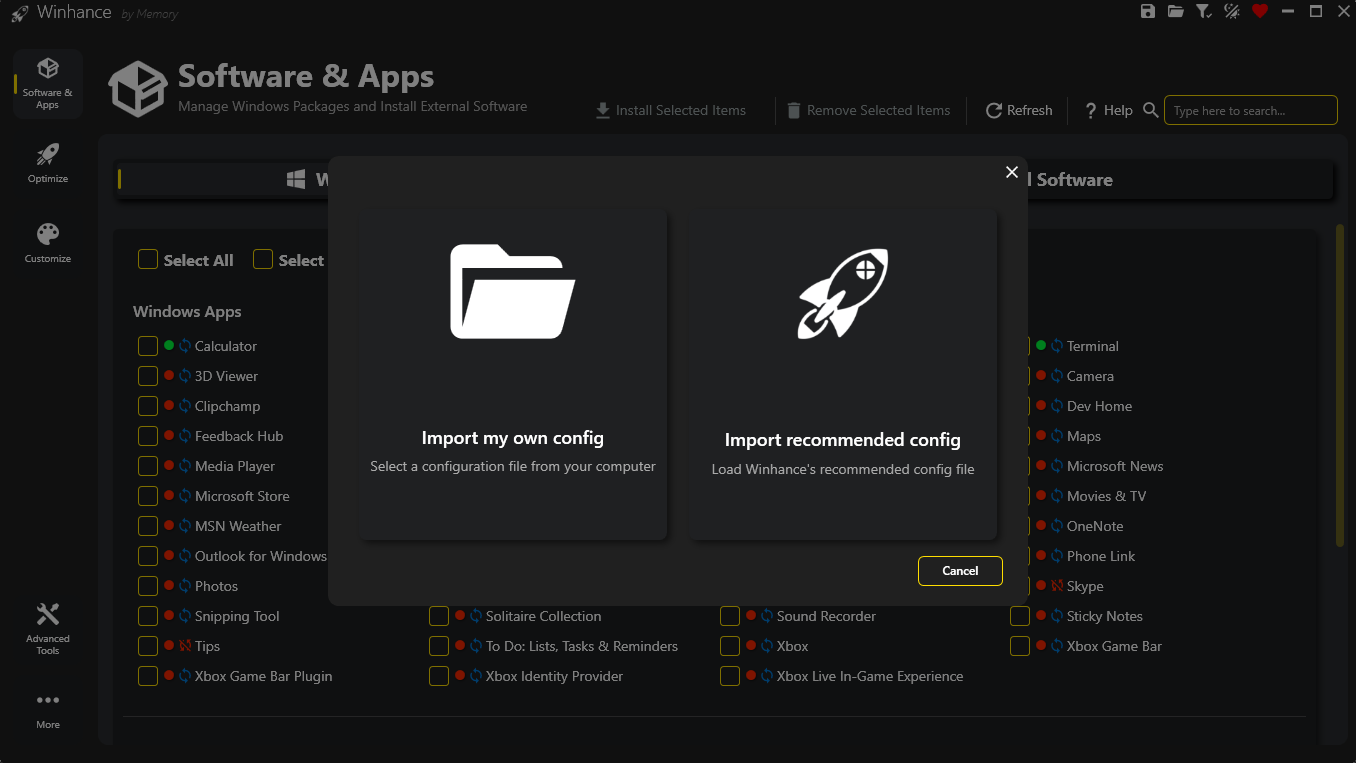
- Click the Import Config button (folder icon) in the top navigation bar, or use the Import button in Settings.
- Choose one of the four options:
- Import my own config: Select a
.winhanceconfiguration file from your computer. - Import recommended config: Load Winhance's built-in recommended settings.
- Import backup config: Load the backup configuration that was automatically created on first launch, capturing your system's original state before any Winhance changes.
- Restore Windows defaults: Apply pre-made configurations from fresh Windows installs (Win11 25H2 and Win10 22H2 available, auto-selected based on your OS).
- Import my own config: Select a
Config Review Mode
After selecting a configuration to import, you can choose how to apply it:
- Skip Review checkbox (unchecked by default): When checked, the configuration is applied immediately without reviewing individual settings.
- Config Review Mode (default): When Skip Review is unchecked, all sections enter review mode:
- Each section shows a count of pending changes.
- Settings are displayed in a read-only (grayed out) state with Apply / Skip radio buttons per setting.
- Each section must be marked complete before the Apply Config button becomes available.
- Pending changes are counted dynamically in the navigation.
During app removal confirmation, you can also choose whether to save removal scripts for later use.
Backup Configuration
On first launch, Winhance automatically creates a backup configuration that captures all available Winhance setting values as they are on your system before any changes are made. This backup can be imported at any time to revert all Winhance-managed settings back to their original values.
Import Options Explained
The import dialog gives you granular control over what gets applied:
Windows Apps
- Process app removals now: Automatically remove selected Windows apps as part of the import process.
- Select checkboxes only: Only mark the apps as selected so you can review them before clicking "Remove Selected Items" manually.
External Apps
- Process app installations now: Automatically start installing selected external apps after the import completes.
- Select checkboxes only: Only mark the apps as selected so you can review them before clicking "Install Selected Items" manually.
Optimize & Customize Features
You can individually select which feature groups to apply:
- Privacy & Security
- Power
- Gaming & Performance
- Updates
- Notifications
- Sound
- Windows Theme (with option to apply default wallpaper)
- Taskbar (with option to apply "Clean Taskbar" command)
- Start Menu (with option to apply "Clean Start Menu" command)
- Explorer
Additional Options
- Apply default wallpaper: When importing theme settings, optionally apply the default Windows wallpaper for the selected theme (light or dark).
- Apply Clean Taskbar: Remove all pinned items from the taskbar and apply recommended taskbar settings.
- Apply Clean Start Menu: Remove all pinned items from the start menu and disable suggestions/recommendations.
- Click OK to begin the import process. A "Sit back and relax" overlay will appear while Winhance applies your settings.
- After the import completes, you'll see a success message. If external app installation was selected, it will begin automatically in the background.
Winhance Recommended Config
Winhance comes with a built-in Recommended Configuration based on hundreds of hours of testing. It provides a balanced set of optimizations that increase performance and privacy without breaking Windows functionality.
What the Recommended Config Includes:
- Windows Apps: Selects common bloatware for removal (Clipchamp, Feedback Hub, Microsoft News, Xbox apps, etc.) while keeping essential apps like Calculator, Notepad, and Terminal.
- External Apps: Selects highly recommended applications including:
- Brave Browser
- 7-Zip
- StartAllBack
- Notepad++
- OnlyOffice Desktop Editors
- Sumatra PDF
- And more...
- Optimizations: Disables major telemetry, advertising, and tracking; applies performance-focused settings.
- Customizations: Applies clean UI tweaks for a streamlined Windows experience.
How to Load the Recommended Config
- Click the Import Config button.
- Select Import recommended config.
- Review and adjust the import options as desired.
- Click OK to apply.
For a quick Windows setup, select the "Process app removals now" and "Process app installations now" options along with all Optimize and Customize sections. In just a few clicks, you can transform a fresh Windows installation into an optimized, debloated system.
Config File Structure (Advanced)
Configuration files are stored in JSON format with a version number for compatibility checking. The current version is 2.0. If you are an advanced user, you can inspect or edit them manually.
The structure includes these main sections:
{
  "Version": "2.0",
  "CreatedAt": "2026-01-29T12:00:00Z",
  "WindowsApps": {
    "IsIncluded": true,
    "Items": [
      {
        "Id": "microsoft-edge",
        "Name": "Microsoft Edge",
        "IsSelected": true,
        "AppxPackageName": "Microsoft.MicrosoftEdge.Stable"
      }
    ]
  },
  "ExternalApps": {
    "IsIncluded": true,
    "Items": [
      {
        "Id": "brave-browser",
        "Name": "Brave",
        "IsSelected": true,
        "WinGetPackageId": "Brave.Brave"
      }
    ]
  },
  "Optimize": {
    "IsIncluded": true,
    "Features": {
      "privacy-security": {
        "IsIncluded": true,
        "Items": [
          {
            "Id": "telemetry-disable",
            "Name": "Disable Telemetry",
            "IsSelected": true,
            "InputType": "Toggle"
          }
        ]
      }
    }
  },
  "Customize": {
    "IsIncluded": true,
    "Features": {
      "windows-theme": {
        "IsIncluded": true,
        "Items": [
          {
            "Id": "theme-mode-windows",
            "Name": "Windows Theme",
            "SelectedIndex": 0
          }
        ]
      }
    }
  }
}Configuration files use version numbers to ensure compatibility. The current format is version 2.0. Winhance will alert you if an imported config is from an unsupported version and cannot be applied.
Best Practices
- Create a backup: Export your configuration before making major changes so you can easily restore your preferred settings.
- Use descriptive names: Name your config files meaningfully (e.g.,
Gaming_PC_Config.winhanceorWork_Laptop_Config.winhance). - Universal configs: If you manage both Windows 10 and 11 machines, turn off the version filter before exporting to create a config that works on both.
- Review before processing: For manual control, select "Select checkboxes only" options to review selections before processing.
- Store configs safely: Keep your configuration files in cloud storage or a backup location so they survive system reinstalls.