
Advanced Tools
Winhance provides a suite of advanced tools for power users who want to automate their Windows deployments or manage installation media. These tools allow you to create custom Windows ISOs that automatically apply your settings during installation.
This page provides an overview of the Advanced Tools. For step-by-step instructions, see the detailed guides in the User Guides section:
- WIMUtil Guide - Complete walkthrough of creating custom Windows ISOs
- Autounattend Guide - Understanding how the XML file works
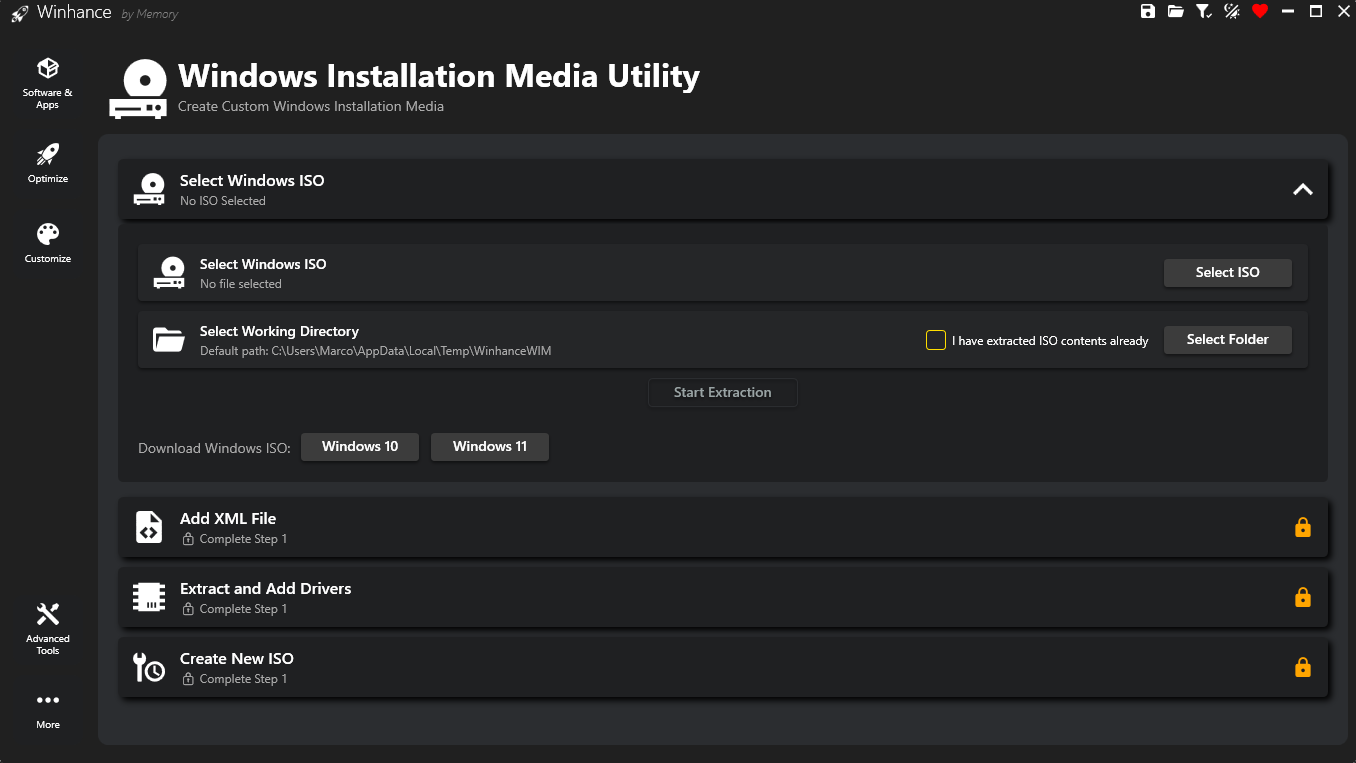
WIMUtil (Windows Installation Media Utility)
WIMUtil is a comprehensive tool for customizing your Windows installation media (ISO). It guides you through the process of creating a "zero-touch" or highly customized Windows installer that applies your Winhance settings automatically.
Key Features:
- ISO Extraction: Mount and extract official Windows 10/11 ISO files to a working directory.
- Image Conversion: Convert between WIM and ESD formats to optimize for installation speed or file size.
- XML Integration: Generate and inject an
autounattend.xmlfile that automates the entire installation process with your settings. - Driver Injection: Export drivers from your current system and inject them into the installer for immediate hardware compatibility.
- Bootable ISO Creation: Generate a new bootable ISO file using official Microsoft tools (oscdimg.exe).
Creating a custom ISO with WIMUtil means you only need to configure your settings once. Every time you reinstall Windows using that ISO, all your preferences—app removals, privacy settings, customizations, and drivers—are applied automatically. Perfect for IT professionals, enthusiasts who reinstall frequently, or anyone setting up multiple PCs.
View the complete WIMUtil step-by-step guide →
Autounattend XML Generator
The Autounattend XML Generator creates an answer file based on your current Winhance selections. This file tells Windows Setup exactly how to configure the system during installation.
What the XML Does:
- Bypass Hardware Checks: Automatically bypasses Windows 11 requirements (TPM, Secure Boot, RAM, CPU).
- Skip OOBE Screens: Skips EULA, Microsoft Account prompts, and unnecessary setup screens.
- Enable Local Accounts: Allows creating a local user account without internet connection. (Internet is automatically disconnected during OOBE and reconnected after)
- Remove Windows Apps: Uninstalls the apps you checked in Winhance's Windows Apps section.
- Apply Settings: Applies all your Optimize and Customize settings automatically.
- Install Winhance Shortcut: Places a shortcut on the desktop to download Winhance for further configuration.
You have three ways to add an XML in WIMUtil:
- Generate Winhance XML: Creates an XML based on your current Winhance settings.
- Download UnattendedWinstall: Downloads a pre-configured XML from the UnattendedWinstall project.
- Select Custom XML: Use your own XML file created with other tools like the Schneegans generator.
Learn how the Autounattend XML works →
System Driver Extraction
One of the biggest hurdles during a clean Windows install is finding all your hardware drivers. Winhance includes a one-click driver extraction tool within WIMUtil:
- Export System Drivers: Captures all third-party drivers (WiFi, GPU, Chipset, Audio, etc.) from your
currently running system using Windows' built-in
Export-WindowsDrivercommand. - Automatic Categorization: Separates drivers into:
- WinPE Drivers: Storage/disk controller drivers needed during Windows Setup
- Post-Install Drivers: All other drivers installed automatically after setup
- Seamless Integration: Drivers are placed in the correct locations (
$WinpeDriver$and$OEM$folders) so Windows Setup handles installation automatically. - Custom Drivers: You can also add drivers from a folder if you have specific drivers that aren't on your current system.
If you're reinstalling Windows on the same computer, extracting and injecting your current drivers is highly recommended. Your hardware will be fully functional immediately after installation—no hunting for driver downloads or using generic drivers.
Accessing Advanced Tools
To access the Advanced Tools in Winhance:
- Click the Advanced Tools button in the main navigation.
- Choose either WIMUtil or Create Autounattend XML.
The Autounattend XML option can be accessed separately if you just want to create an XML file without building a full custom ISO (for example, to copy it manually to a USB drive).